Introduction
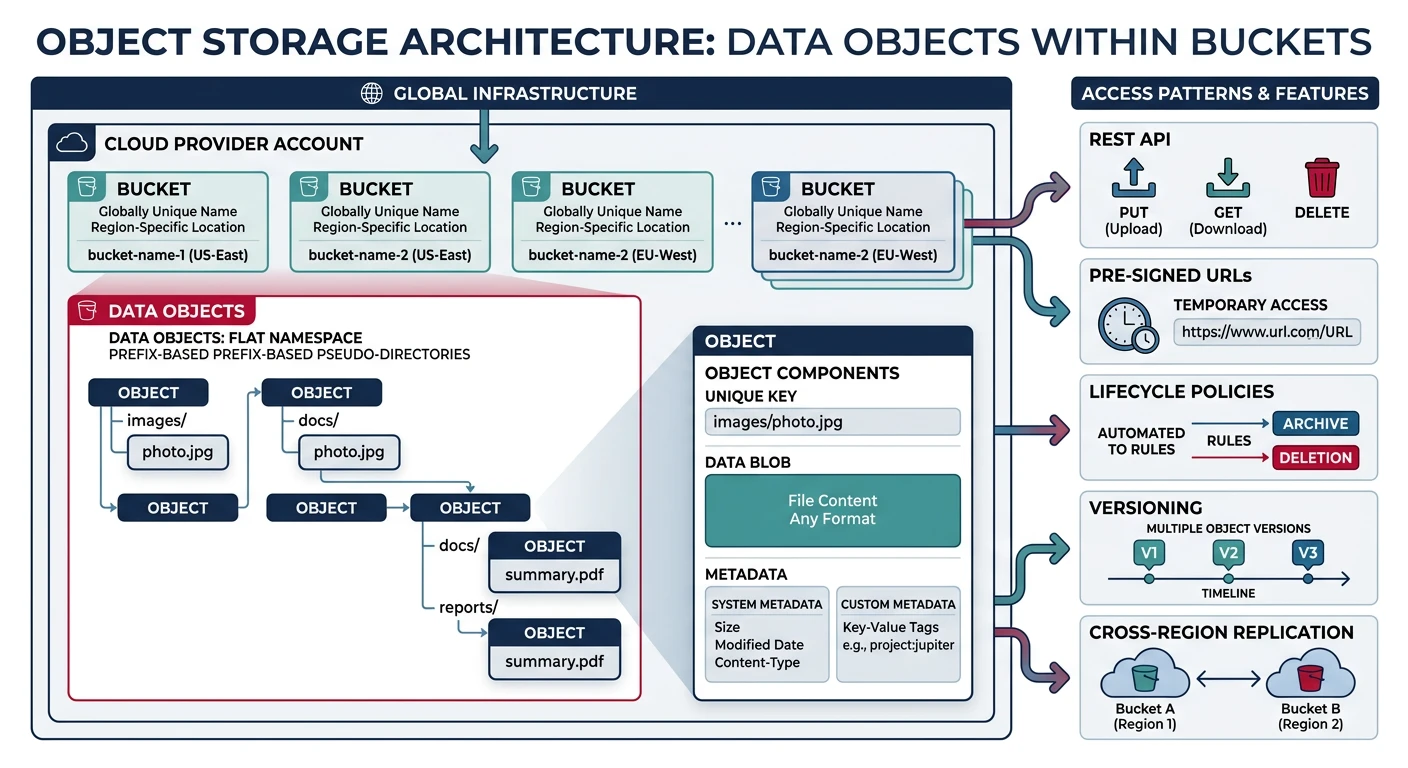
Object storage is the backbone of modern cloud applications, providing scalable, durable, and cost-effective storage for any type of data. Unlike traditional file systems or block storage, object storage stores data as discrete units called "objects" with unique identifiers and rich metadata.
- AWS S3 - Amazon Simple Storage Service
- Azure Blob Storage - Microsoft's object storage solution
- Google Cloud Storage - GCP's unified object storage
- Cross-provider concepts: buckets, objects, access control, lifecycle policies
- Practical CLI examples for each provider
Cloud Computing Mastery
Cloud Computing Fundamentals
IaaS, PaaS, SaaS, deployment modelsCLI Tools & Setup
AWS CLI, Azure CLI, gcloud, TerraformCompute Services
VMs, containers, auto-scaling, spot instancesStorage Services
Object, block, file storage, data lifecycleDatabase Services
RDS, DynamoDB, Cosmos DB, cachingNetworking & CDN
VPCs, load balancers, DNS, content deliveryServerless Computing
Lambda, Functions, event-driven architectureContainers & Kubernetes
Docker, EKS, AKS, GKE, orchestrationIdentity & Security
IAM, RBAC, encryption, complianceMonitoring & Observability
CloudWatch, Azure Monitor, loggingDevOps & CI/CD
Pipelines, infrastructure as code, GitOpsCore Concepts
Before diving into specific providers, let's understand the fundamental concepts that apply across all cloud object storage services.
Objects and Buckets
Objects are the fundamental units of storage, consisting of:
- Data - The actual content (files, images, videos, backups)
- Key - Unique identifier within the bucket (like a file path)
- Metadata - Information about the object (content type, timestamps, custom headers)
Buckets (or Containers in Azure) are top-level containers that:
- Hold objects and provide namespace isolation
- Have globally unique names (AWS/GCP) or account-scoped names (Azure)
- Define storage location (region) and access policies
Storage Classes/Tiers
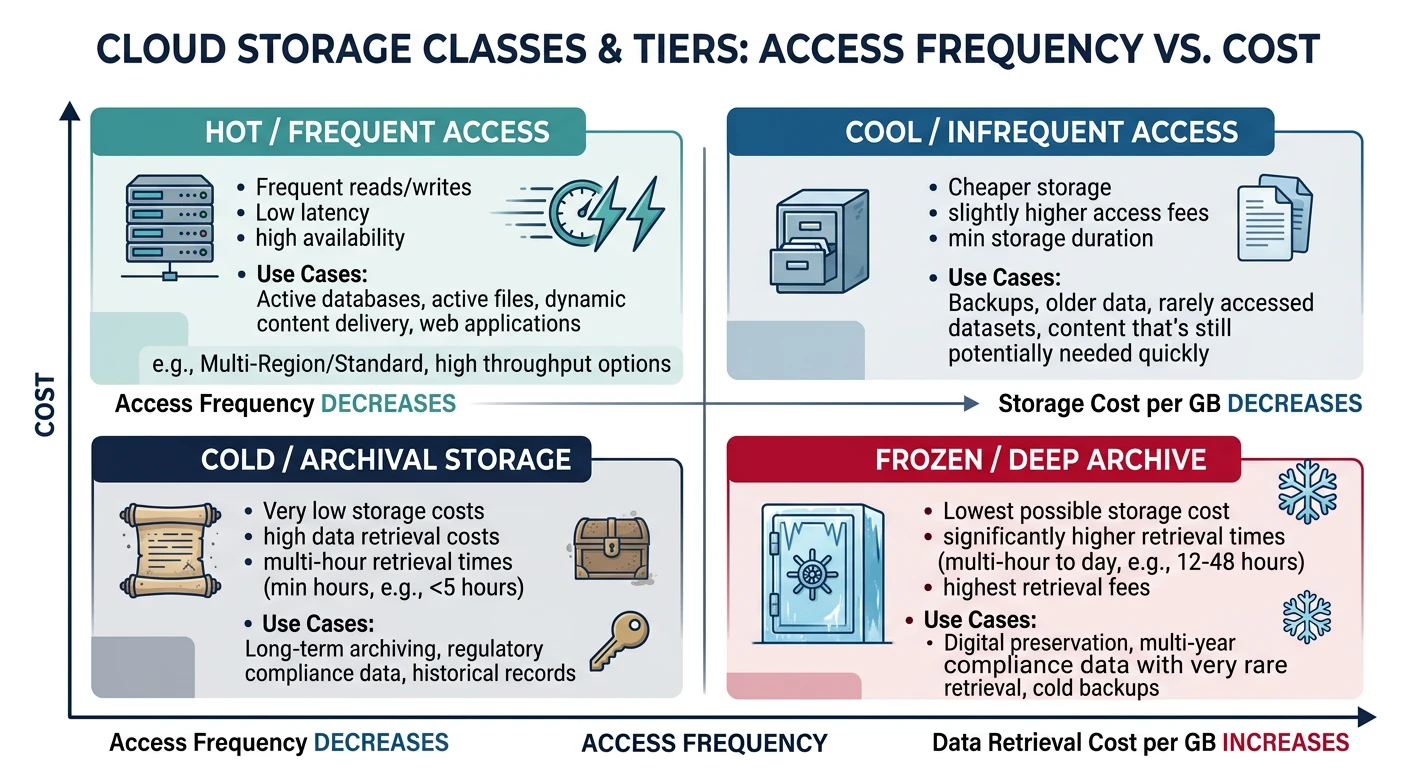
All providers offer multiple storage classes optimized for different access patterns and cost requirements:
| Use Case | AWS S3 | Azure Blob | GCS |
|---|---|---|---|
| Frequent Access | S3 Standard | Hot | Standard |
| Infrequent Access | S3 Standard-IA | Cool | Nearline |
| Archive (Rare Access) | S3 Glacier Instant | Cold | Coldline |
| Deep Archive | S3 Glacier Deep Archive | Archive | Archive |
| Intelligent Tiering | S3 Intelligent-Tiering | Auto (preview) | Autoclass |
Provider Comparison
| Feature | AWS S3 | Azure Blob | Google Cloud Storage |
|---|---|---|---|
| Container Name | Bucket | Container | Bucket |
| Naming Scope | Globally unique | Account-scoped | Globally unique |
| Max Object Size | 5 TB | 190.7 TB (block blob) | 5 TB |
| Durability | 99.999999999% (11 9s) | 99.999999999% (11 9s) | 99.999999999% (11 9s) |
| Versioning | Yes | Yes (soft delete) | Yes |
| Replication | CRR, SRR | LRS, GRS, RA-GRS | Multi-region, Dual-region |
| CLI Tool | aws s3 / aws s3api | az storage blob | gcloud storage / gsutil |
AWS S3
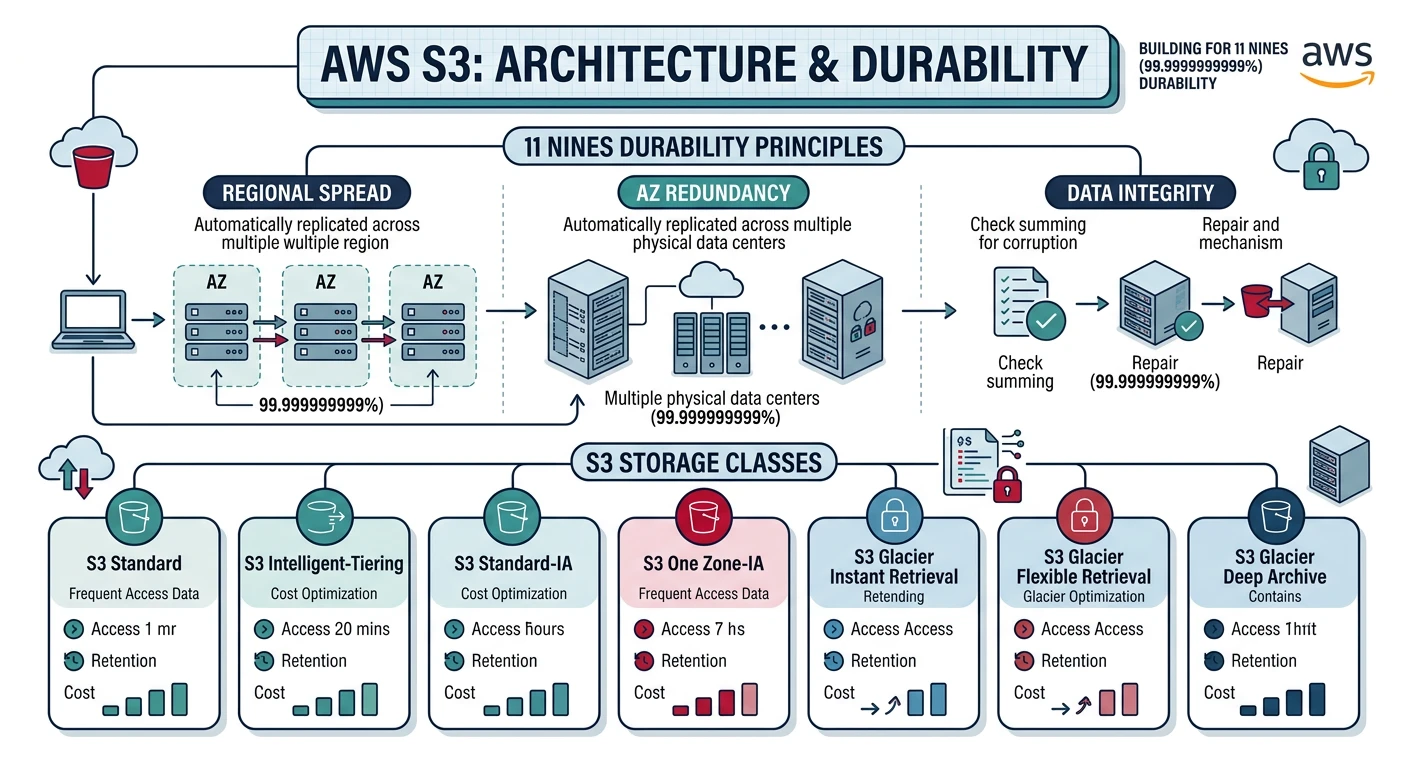
Amazon S3 (Simple Storage Service) is the most widely used cloud object storage service, launched in 2006. It offers industry-leading scalability, data availability, security, and performance.
AWS S3 Key Features
- 99.999999999% (11 9s) durability
- Multiple storage classes for cost optimization
- S3 Select and Glacier Select for querying data in place
- S3 Object Lambda for data transformation
- Strong read-after-write consistency
Creating and Managing Buckets
# Create a bucket (bucket names are globally unique)
aws s3 mb s3://my-unique-bucket-name-2026

# Create bucket in specific region
aws s3 mb s3://my-bucket-name --region us-west-2

# List all buckets
aws s3 ls

# List bucket contents
aws s3 ls s3://my-bucket-name

# List with details (size, date)
aws s3 ls s3://my-bucket-name --recursive --human-readable --summarize

# Delete empty bucket
aws s3 rb s3://my-bucket-name

# Delete bucket and all contents (use with caution!)
aws s3 rb s3://my-bucket-name --force
Uploading and Downloading Objects
# Upload single file
aws s3 cp myfile.txt s3://my-bucket-name/

# Upload with specific key (path)
aws s3 cp myfile.txt s3://my-bucket-name/folder/subfolder/myfile.txt

# Upload entire directory
aws s3 cp ./local-folder s3://my-bucket-name/remote-folder --recursive

# Upload with specific storage class
aws s3 cp largefile.zip s3://my-bucket-name/ --storage-class STANDARD_IA

# Download file
aws s3 cp s3://my-bucket-name/myfile.txt ./local-file.txt

# Download entire folder
aws s3 cp s3://my-bucket-name/folder ./local-folder --recursive

# Sync local folder to S3 (only uploads changes)
aws s3 sync ./local-folder s3://my-bucket-name/remote-folder

# Sync with delete (removes files not in source)
aws s3 sync ./local-folder s3://my-bucket-name/remote-folder --delete
Managing Objects
# Copy object within S3
aws s3 cp s3://source-bucket/file.txt s3://dest-bucket/file.txt

# Move object (copy + delete source)
aws s3 mv s3://my-bucket/old-path/file.txt s3://my-bucket/new-path/file.txt

# Delete single object
aws s3 rm s3://my-bucket-name/myfile.txt

# Delete multiple objects matching pattern
aws s3 rm s3://my-bucket-name/folder/ --recursive

# Delete with specific prefix
aws s3 rm s3://my-bucket-name/ --recursive --exclude "*" --include "*.log"

# Get object metadata
aws s3api head-object --bucket my-bucket-name --key myfile.txt
S3 Presigned URLs
# Generate presigned URL for download (default 1 hour)
aws s3 presign s3://my-bucket-name/myfile.txt

# Generate presigned URL with custom expiration (in seconds)
aws s3 presign s3://my-bucket-name/myfile.txt --expires-in 3600

# Generate presigned URL for upload
aws s3 presign s3://my-bucket-name/upload-file.txt --expires-in 3600
Enable Versioning
# Enable versioning on bucket
aws s3api put-bucket-versioning \
    --bucket my-bucket-name \
    --versioning-configuration Status=Enabled

# Check versioning status
aws s3api get-bucket-versioning --bucket my-bucket-name

# List object versions
aws s3api list-object-versions --bucket my-bucket-name

# Download specific version
aws s3api get-object \
    --bucket my-bucket-name \
    --key myfile.txt \
    --version-id "version-id-string" \
    downloaded-file.txt

# Delete specific version
aws s3api delete-object \
    --bucket my-bucket-name \
    --key myfile.txt \
    --version-id "version-id-string"
Azure Blob Storage
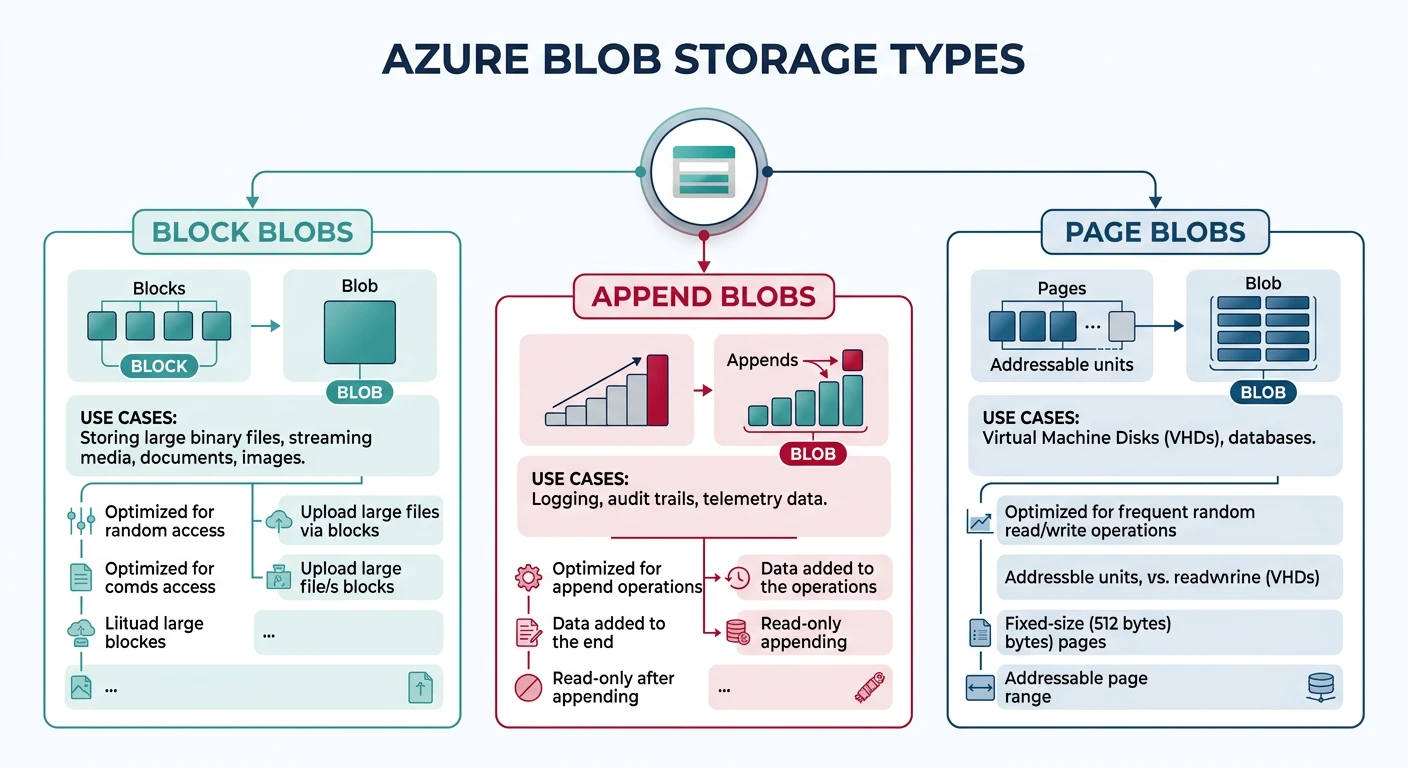
Azure Blob Storage is Microsoft's object storage solution for the cloud, optimized for storing massive amounts of unstructured data.
Azure Blob Key Features
- Three blob types: Block, Append, and Page blobs
- Hierarchical namespace (Azure Data Lake Storage Gen2)
- Blob indexing and tagging for enhanced search
- Immutable storage with legal hold and time-based retention
- Native integration with Azure services
Storage Account and Container Setup
# Create storage account (name must be globally unique)
az storage account create \
    --name mystorageaccount2026 \
    --resource-group myResourceGroup \
    --location eastus \
    --sku Standard_LRS \
    --kind StorageV2

# Get storage account connection string
az storage account show-connection-string \
    --name mystorageaccount2026 \
    --resource-group myResourceGroup

# Set connection string as environment variable
export AZURE_STORAGE_CONNECTION_STRING="your-connection-string"

# Create container
az storage container create --name mycontainer

# Create container with public access
az storage container create \
    --name public-container \
    --public-access blob

# List containers
az storage container list --output table

# Delete container
az storage container delete --name mycontainer
Uploading and Downloading Blobs
# Upload single file
az storage blob upload \
    --container-name mycontainer \
    --name myblob.txt \
    --file ./localfile.txt

# Upload with specific content type
az storage blob upload \
    --container-name mycontainer \
    --name image.png \
    --file ./image.png \
    --content-type "image/png"

# Upload to virtual directory
az storage blob upload \
    --container-name mycontainer \
    --name folder/subfolder/myblob.txt \
    --file ./localfile.txt

# Upload entire directory
az storage blob upload-batch \
    --destination mycontainer \
    --source ./local-folder \
    --pattern "*"

# Download blob
az storage blob download \
    --container-name mycontainer \
    --name myblob.txt \
    --file ./downloaded.txt

# Download directory
az storage blob download-batch \
    --destination ./local-folder \
    --source mycontainer \
    --pattern "folder/*"
Managing Blobs
# List blobs in container
az storage blob list \
    --container-name mycontainer \
    --output table

# List blobs with prefix
az storage blob list \
    --container-name mycontainer \
    --prefix "folder/" \
    --output table

# Copy blob within storage account
az storage blob copy start \
    --destination-container dest-container \
    --destination-blob copied-file.txt \
    --source-container source-container \
    --source-blob original-file.txt

# Copy blob from URL
az storage blob copy start \
    --destination-container mycontainer \
    --destination-blob newfile.txt \
    --source-uri "https://source.blob.core.windows.net/container/file.txt"

# Delete blob
az storage blob delete \
    --container-name mycontainer \
    --name myblob.txt

# Delete blobs matching pattern
az storage blob delete-batch \
    --source mycontainer \
    --pattern "*.log"

# Get blob properties
az storage blob show \
    --container-name mycontainer \
    --name myblob.txt
Set Access Tier
# Set blob tier to Cool
az storage blob set-tier \
    --container-name mycontainer \
    --name myblob.txt \
    --tier Cool

# Set blob tier to Archive
az storage blob set-tier \
    --container-name mycontainer \
    --name archive-data.zip \
    --tier Archive

# Rehydrate from Archive to Hot (takes hours)
az storage blob set-tier \
    --container-name mycontainer \
    --name archive-data.zip \
    --tier Hot \
    --rehydrate-priority Standard

# Batch set tier for multiple blobs
az storage blob set-tier \
    --container-name mycontainer \
    --name "*.old" \
    --tier Cool
Generate SAS Tokens
# Generate SAS token for container (read access, 1 day)
az storage container generate-sas \
    --name mycontainer \
    --permissions r \
    --expiry $(date -u -d "+1 day" +%Y-%m-%dT%H:%MZ) \
    --output tsv

# Generate SAS token for blob (read/write, 1 hour)
az storage blob generate-sas \
    --container-name mycontainer \
    --name myblob.txt \
    --permissions rw \
    --expiry $(date -u -d "+1 hour" +%Y-%m-%dT%H:%MZ) \
    --output tsv

# Generate SAS URL (includes full URL)
az storage blob generate-sas \
    --container-name mycontainer \
    --name myblob.txt \
    --permissions r \
    --expiry $(date -u -d "+1 day" +%Y-%m-%dT%H:%MZ) \
    --full-uri \
    --output tsv
Google Cloud Storage
Google Cloud Storage (GCS) provides unified object storage with automatic data encryption, strong consistency, and integration with Google's data analytics services.
GCS Key Features
- Unified storage API across all storage classes
- Autoclass for automatic tier management
- Object Lifecycle Management
- Strong global consistency
- Deep integration with BigQuery and AI/ML services
Creating and Managing Buckets
# Create bucket (globally unique name)
gcloud storage buckets create gs://my-unique-bucket-2026

# Create bucket in specific location
gcloud storage buckets create gs://my-bucket-name \
    --location=us-central1

# Create bucket with storage class
gcloud storage buckets create gs://my-nearline-bucket \
    --location=us-central1 \
    --default-storage-class=nearline

# Create dual-region bucket
gcloud storage buckets create gs://my-dual-region-bucket \
    --location=nam4 \
    --default-storage-class=standard

# List all buckets
gcloud storage ls

# Get bucket details
gcloud storage buckets describe gs://my-bucket-name

# Delete empty bucket
gcloud storage rm gs://my-bucket-name

# Delete bucket and all contents
gcloud storage rm gs://my-bucket-name --recursive
Uploading and Downloading Objects
# Upload single file
gcloud storage cp myfile.txt gs://my-bucket-name/

# Upload with specific path
gcloud storage cp myfile.txt gs://my-bucket-name/folder/subfolder/

# Upload directory
gcloud storage cp -r ./local-folder gs://my-bucket-name/

# Upload with specific storage class
gcloud storage cp largefile.zip gs://my-bucket-name/ \
    --storage-class=nearline

# Download file
gcloud storage cp gs://my-bucket-name/myfile.txt ./local-file.txt

# Download directory
gcloud storage cp -r gs://my-bucket-name/folder ./local-folder

# Sync (rsync-like behavior)
gcloud storage rsync ./local-folder gs://my-bucket-name/remote-folder

# Sync with delete
gcloud storage rsync ./local-folder gs://my-bucket-name/remote-folder \
    --delete-unmatched-destination-objects
Managing Objects
# List objects
gcloud storage ls gs://my-bucket-name/

# List with details
gcloud storage ls -l gs://my-bucket-name/

# List recursively
gcloud storage ls -r gs://my-bucket-name/

# Copy objects within GCS
gcloud storage cp gs://source-bucket/file.txt gs://dest-bucket/

# Move object
gcloud storage mv gs://my-bucket/old-path/file.txt gs://my-bucket/new-path/

# Delete object
gcloud storage rm gs://my-bucket-name/myfile.txt

# Delete multiple objects
gcloud storage rm gs://my-bucket-name/folder/** --recursive

# Get object metadata
gcloud storage objects describe gs://my-bucket-name/myfile.txt
Object Versioning
# Enable versioning on bucket
gcloud storage buckets update gs://my-bucket-name --versioning

# Disable versioning
gcloud storage buckets update gs://my-bucket-name --no-versioning

# List object versions
gcloud storage ls -a gs://my-bucket-name/myfile.txt

# Copy specific version
gcloud storage cp gs://my-bucket-name/myfile.txt#1234567890 ./old-version.txt

# Delete specific version
gcloud storage rm gs://my-bucket-name/myfile.txt#1234567890
Signed URLs
# Generate signed URL (requires service account key)
gcloud storage sign-url gs://my-bucket-name/myfile.txt \
    --duration=1h

# Generate signed URL for upload
gcloud storage sign-url gs://my-bucket-name/upload-file.txt \
    --duration=1h \
    --http-verb=PUT

# Generate signed URL with specific content type
gcloud storage sign-url gs://my-bucket-name/image.png \
    --duration=1h \
    --headers="Content-Type=image/png"
Access Control
Each cloud provider offers multiple layers of access control for securing your storage resources.
AWS S3 Access Control
# Block all public access (recommended)
aws s3api put-public-access-block \
    --bucket my-bucket-name \
    --public-access-block-configuration \
    "BlockPublicAcls=true,IgnorePublicAcls=true,BlockPublicPolicy=true,RestrictPublicBuckets=true"

# Check public access settings
aws s3api get-public-access-block --bucket my-bucket-name

# Apply bucket policy
aws s3api put-bucket-policy \
    --bucket my-bucket-name \
    --policy file://bucket-policy.json
Example S3 bucket policy (bucket-policy.json):
{
    "Version": "2012-10-17",
    "Statement": [
        {
            "Sid": "AllowSpecificIPAccess",
            "Effect": "Allow",
            "Principal": "*",
            "Action": "s3:GetObject",
            "Resource": "arn:aws:s3:::my-bucket-name/*",
            "Condition": {
                "IpAddress": {
                    "aws:SourceIp": "203.0.113.0/24"
                }
            }
        },
        {
            "Sid": "DenyInsecureConnections",
            "Effect": "Deny",
            "Principal": "*",
            "Action": "s3:*",
            "Resource": [
                "arn:aws:s3:::my-bucket-name",
                "arn:aws:s3:::my-bucket-name/*"
            ],
            "Condition": {
                "Bool": {
                    "aws:SecureTransport": "false"
                }
            }
        }
    ]
}
Azure Blob Access Control
# Set container access level (private, blob, container)
az storage container set-permission \
    --name mycontainer \
    --public-access off

# Assign RBAC role to user
az role assignment create \
    --assignee user@example.com \
    --role "Storage Blob Data Contributor" \
    --scope "/subscriptions/{sub-id}/resourceGroups/{rg}/providers/Microsoft.Storage/storageAccounts/{account}/blobServices/default/containers/{container}"

# Enable Azure AD authentication
az storage account update \
    --name mystorageaccount \
    --resource-group myResourceGroup \
    --allow-blob-public-access false

# Create stored access policy
az storage container policy create \
    --container-name mycontainer \
    --name mypolicy \
    --permissions rwl \
    --expiry $(date -u -d "+30 days" +%Y-%m-%dT%H:%MZ)
GCS Access Control
# Set bucket to uniform access (recommended)
gcloud storage buckets update gs://my-bucket-name \
    --uniform-bucket-level-access

# Grant read access to user
gcloud storage buckets add-iam-policy-binding gs://my-bucket-name \
    --member="user:user@example.com" \
    --role="roles/storage.objectViewer"

# Grant write access to service account
gcloud storage buckets add-iam-policy-binding gs://my-bucket-name \
    --member="serviceAccount:my-sa@project.iam.gserviceaccount.com" \
    --role="roles/storage.objectCreator"

# View bucket IAM policy
gcloud storage buckets get-iam-policy gs://my-bucket-name

# Make bucket public (use with caution)
gcloud storage buckets add-iam-policy-binding gs://my-bucket-name \
    --member="allUsers" \
    --role="roles/storage.objectViewer"

# Remove public access
gcloud storage buckets remove-iam-policy-binding gs://my-bucket-name \
    --member="allUsers" \
    --role="roles/storage.objectViewer"
Lifecycle Policies
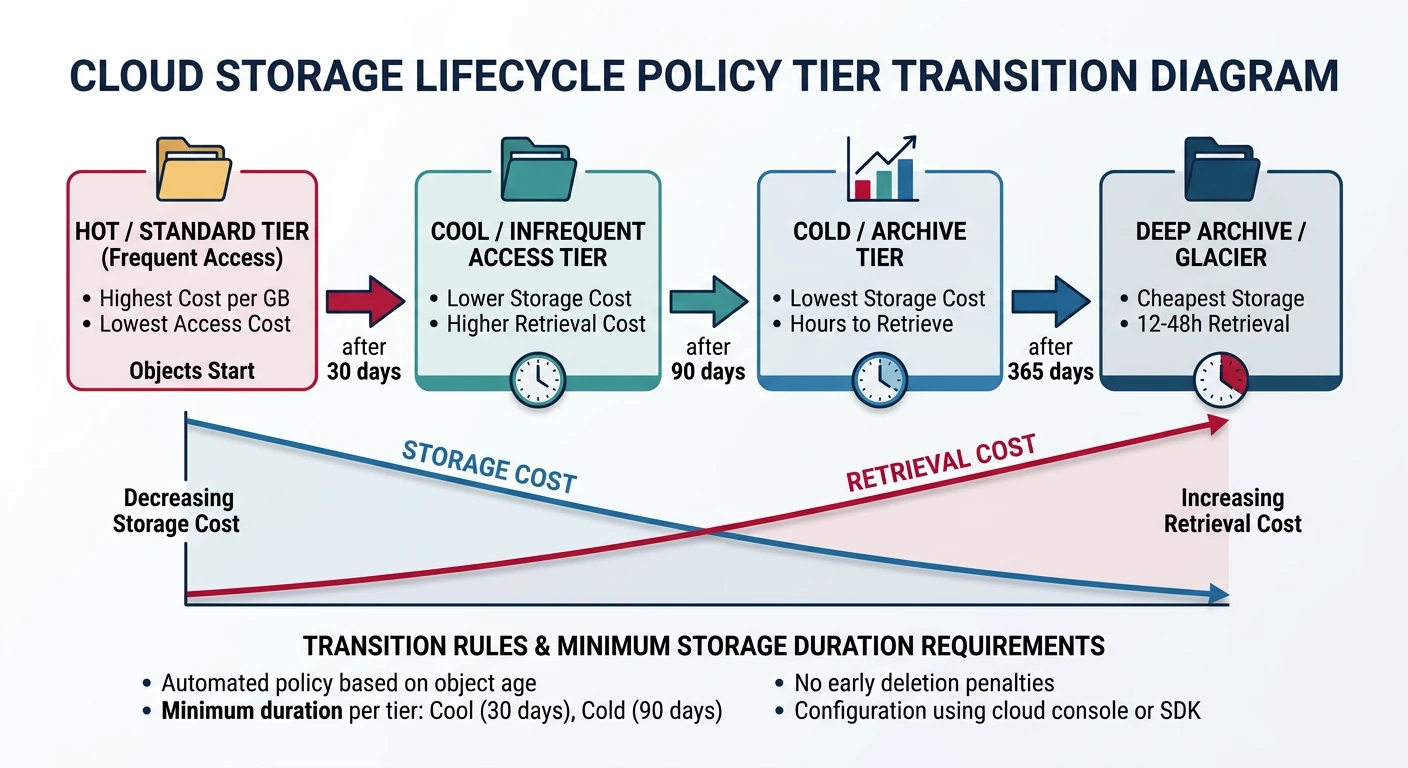
Lifecycle policies automate storage management by transitioning objects between storage classes or deleting them based on rules.
AWS S3 Lifecycle Configuration
# Apply lifecycle configuration
aws s3api put-bucket-lifecycle-configuration \
    --bucket my-bucket-name \
    --lifecycle-configuration file://lifecycle.json
Example lifecycle policy (lifecycle.json):
{
    "Rules": [
        {
            "ID": "Move to IA after 30 days",
            "Status": "Enabled",
            "Filter": {
                "Prefix": "logs/"
            },
            "Transitions": [
                {
                    "Days": 30,
                    "StorageClass": "STANDARD_IA"
                },
                {
                    "Days": 90,
                    "StorageClass": "GLACIER"
                }
            ],
            "Expiration": {
                "Days": 365
            }
        },
        {
            "ID": "Delete incomplete uploads",
            "Status": "Enabled",
            "Filter": {},
            "AbortIncompleteMultipartUpload": {
                "DaysAfterInitiation": 7
            }
        },
        {
            "ID": "Delete old versions",
            "Status": "Enabled",
            "Filter": {},
            "NoncurrentVersionTransitions": [
                {
                    "NoncurrentDays": 30,
                    "StorageClass": "STANDARD_IA"
                }
            ],
            "NoncurrentVersionExpiration": {
                "NoncurrentDays": 90
            }
        }
    ]
}
Azure Blob Lifecycle Management
# Create lifecycle management policy
az storage account management-policy create \
    --account-name mystorageaccount \
    --resource-group myResourceGroup \
    --policy @lifecycle-policy.json
Example Azure lifecycle policy (lifecycle-policy.json):
{
    "rules": [
        {
            "enabled": true,
            "name": "move-to-cool",
            "type": "Lifecycle",
            "definition": {
                "actions": {
                    "baseBlob": {
                        "tierToCool": {
                            "daysAfterModificationGreaterThan": 30
                        },
                        "tierToArchive": {
                            "daysAfterModificationGreaterThan": 90
                        },
                        "delete": {
                            "daysAfterModificationGreaterThan": 365
                        }
                    },
                    "snapshot": {
                        "delete": {
                            "daysAfterCreationGreaterThan": 90
                        }
                    }
                },
                "filters": {
                    "blobTypes": ["blockBlob"],
                    "prefixMatch": ["logs/"]
                }
            }
        }
    ]
}
GCS Lifecycle Configuration
# Set lifecycle configuration from JSON file
gcloud storage buckets update gs://my-bucket-name \
    --lifecycle-file=lifecycle.json
Example GCS lifecycle policy (lifecycle.json):
{
    "rule": [
        {
            "action": {
                "type": "SetStorageClass",
                "storageClass": "NEARLINE"
            },
            "condition": {
                "age": 30,
                "matchesPrefix": ["logs/"]
            }
        },
        {
            "action": {
                "type": "SetStorageClass",
                "storageClass": "COLDLINE"
            },
            "condition": {
                "age": 90,
                "matchesStorageClass": ["NEARLINE"]
            }
        },
        {
            "action": {
                "type": "Delete"
            },
            "condition": {
                "age": 365,
                "matchesPrefix": ["logs/"]
            }
        },
        {
            "action": {
                "type": "Delete"
            },
            "condition": {
                "numNewerVersions": 3
            }
        },
        {
            "action": {
                "type": "AbortIncompleteMultipartUpload"
            },
            "condition": {
                "age": 7
            }
        }
    ]
}
Best Practices
- Block public access by default; enable only when necessary
- Enable server-side encryption (SSE) for all objects
- Use IAM roles/policies instead of access keys when possible
- Enable versioning for critical data
- Require HTTPS/TLS for all connections
- Enable access logging for audit trails
Enable Server-Side Encryption
# AWS S3: Enable default encryption
aws s3api put-bucket-encryption \
    --bucket my-bucket-name \
    --server-side-encryption-configuration '{
        "Rules": [{
            "ApplyServerSideEncryptionByDefault": {
                "SSEAlgorithm": "AES256"
            }
        }]
    }'

# Azure: Enable encryption (enabled by default with Microsoft-managed keys)
az storage account update \
    --name mystorageaccount \
    --resource-group myResourceGroup \
    --encryption-services blob

# GCS: Objects are encrypted by default with Google-managed keys
# For customer-managed keys (CMEK):
gcloud storage buckets update gs://my-bucket-name \
    --default-encryption-key=projects/my-project/locations/us/keyRings/my-keyring/cryptoKeys/my-key
Enable Access Logging
# AWS S3: Enable server access logging
aws s3api put-bucket-logging \
    --bucket my-bucket-name \
    --bucket-logging-status '{
        "LoggingEnabled": {
            "TargetBucket": "my-logs-bucket",
            "TargetPrefix": "s3-access-logs/"
        }
    }'

# Azure: Enable diagnostic logging
az monitor diagnostic-settings create \
    --name "blob-logs" \
    --resource "/subscriptions/{sub}/resourceGroups/{rg}/providers/Microsoft.Storage/storageAccounts/{account}/blobServices/default" \
    --logs '[{"category": "StorageRead", "enabled": true}, {"category": "StorageWrite", "enabled": true}]' \
    --storage-account my-logs-storage-account

# GCS: Enable usage logs
gcloud storage buckets update gs://my-bucket-name \
    --log-bucket=gs://my-logs-bucket \
    --log-object-prefix=gcs-access-logs/
Cost Optimization Tips
Cost Optimization Strategies
- Use appropriate storage classes - Match storage class to access patterns
- Implement lifecycle policies - Automatically transition or delete old data
- Enable intelligent tiering - S3 Intelligent-Tiering, GCS Autoclass
- Delete incomplete multipart uploads - These accumulate hidden costs
- Compress data before upload - Reduce storage and transfer costs
- Use regional buckets - Cheaper than multi-region for non-critical data
- Monitor and set budgets - Use cost allocation tags and alerts
Conclusion
Cloud object storage services from AWS, Azure, and GCP all provide highly durable, scalable, and secure storage solutions. While the core concepts are similar, each provider offers unique features and pricing models.
| Choose AWS S3 If... | Choose Azure Blob If... | Choose GCS If... |
|---|---|---|
| You need the most mature ecosystem | You're heavily invested in Microsoft stack | You need BigQuery/AI ML integration |
| You require S3-compatible API | You need Azure Data Lake features | You want simplest pricing model |
| You need maximum third-party support | You have hybrid/on-prem requirements | You need strong global consistency |